I’ve lost count of how many times I’ve watched an Instagram Reel and thought, “I’ll save this somewhere and watch it later.” Then I saved it inside Instagram, forgot about it, or needed the actual video in my phone gallery and realized that saving a Reel and downloading it are two completely different things.
The good news is that you have several options. The best method depends on the type of Instagram video, whether it belongs to you, and whether you need the original file or simply want a copy for offline viewing.
Can You Download Instagram Videos on Android?
Yes, but Instagram doesn’t treat every video in exactly the same way.
For some public Reels, Instagram itself provides a download option. For your own content, you may have additional options. And when a download button isn’t available, Android’s built-in screen recorder can be a surprisingly simple solution.
There are also third-party downloader websites, but I personally wouldn’t recommend logging into Instagram through one of them. If a website asks for your Instagram username and password just to download a public video, that’s a big red flag.
Also remember one simple rule: downloading a video doesn’t automatically give you permission to repost it. If someone else created the video, respect their copyright and privacy.
How to Download Instagram Videos on Android Using Instagram
This is the first method I’d try because you don’t need another app.
Step 1: Open Instagram
Open the Instagram app on your Android phone and find the Reel you want to save.
Step 2: Open the Reel
Make sure you’re viewing the actual Reel rather than just a preview somewhere in your feed.
Step 3: Tap the Share Button
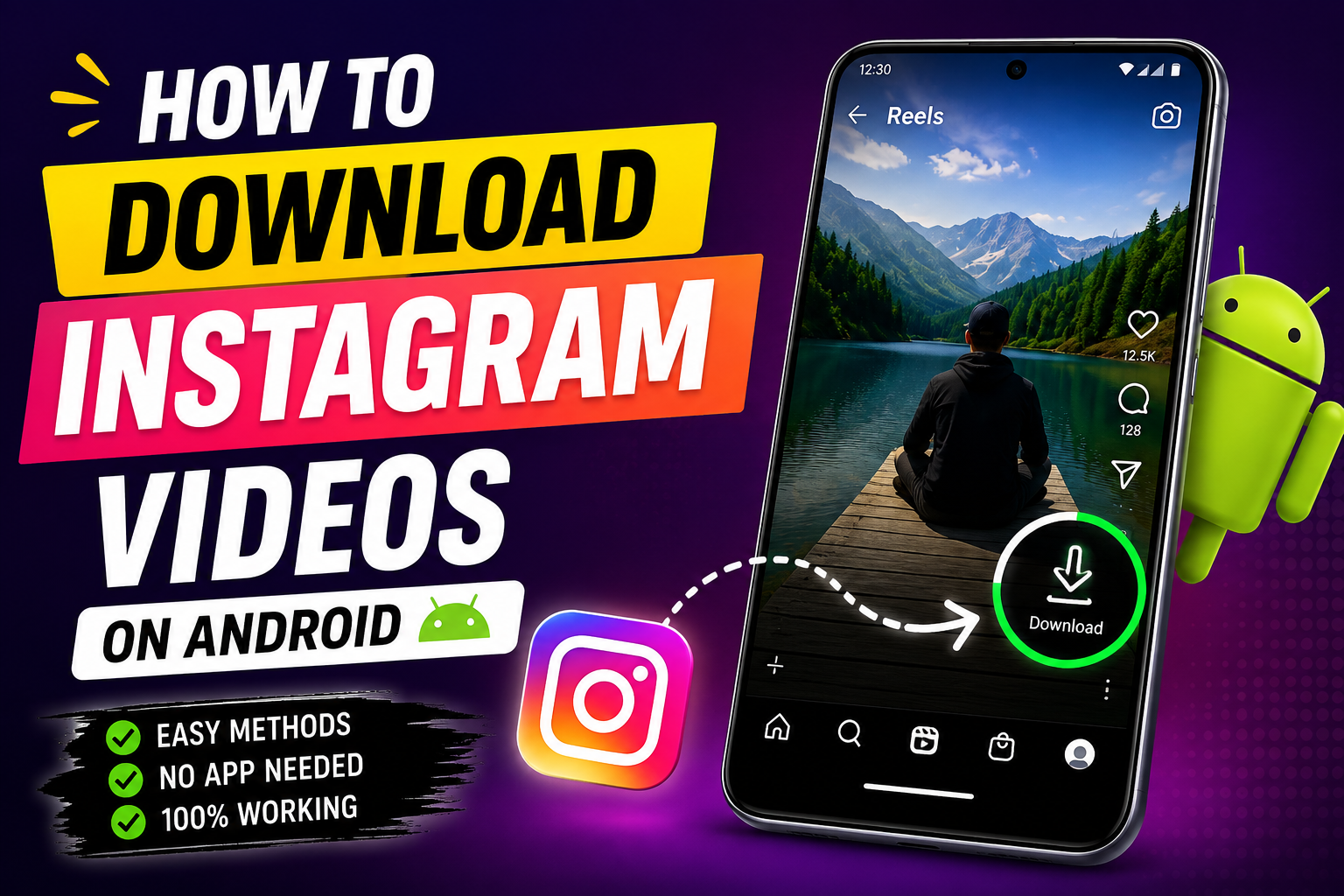
Tap the paper-plane/share icon on the Reel. Depending on the video and Instagram’s current settings, you may see a Download option.
Step 4: Tap Download
If Instagram offers the download option, tap it and wait for the process to finish.
The downloaded video should then be available through your phone’s gallery or photos app. The exact location can vary between Android phones.
If you don’t see a Download option, don’t keep tapping random buttons. Instagram may have disabled downloading for that particular Reel, or the account/content settings may not allow it.
Quick tip: Instagram’s interface changes fairly often. If your buttons look slightly different from the screenshots in another tutorial, that’s normal. Look for the Share menu rather than following an old screenshot word-for-word.
How to Download Instagram Videos on Android With Screen Recording
This is probably my favorite fallback method because it doesn’t require a downloader website or an unknown application.
Most modern Android phones include a built-in screen recorder. Samsung, Xiaomi, OnePlus, Google Pixel, Vivo, Oppo and other Android brands may place the feature in slightly different locations, but the basic idea is the same.
Step 1: Open Quick Settings
Swipe down from the top of your Android screen. You may need to swipe down twice to see all Quick Settings.
Step 2: Find Screen Recorder
Look for an option called Screen Recorder, Screen Recording, or something similar.
If you can’t find it, tap the edit button in Quick Settings. On some phones, the recorder is available but simply isn’t included in your visible shortcuts.
Step 3: Start Recording
Open the Instagram Reel first, pause it near the beginning, and then start your screen recording.
Give the video a second before pressing play. This makes it easier to trim the beginning later.
Step 4: Play the Instagram Video
Play the entire Reel while the screen recorder is running. Avoid touching the screen unnecessarily because your taps, notifications, or pop-ups can become part of the recording.
Step 5: Stop Recording
Once the Reel finishes, stop the screen recording from the notification panel or floating recording controls.
Step 6: Trim the Video
Open your Gallery or Google Photos app and trim the extra seconds from the beginning and end.
That’s it. No downloader app, no Instagram password, and no complicated setup.
How to Download Your Own Instagram Videos
If the video is yours, things are much easier because you don’t have to work around another creator’s content settings.
If you still have the original video on your phone, use that file rather than downloading it from Instagram. The original usually has better quality because Instagram compresses uploaded media.
If you don’t have the original anymore, check your Instagram content and available download/save options. You can also look through your Google Photos backup, phone gallery, or the folder where you originally stored your videos.
This is one of those situations where spending five minutes searching your phone can save you twenty minutes messing around with a downloader site.
Can You Use an Instagram Video Downloader Website?
Yes, websites exist that claim to download Instagram videos by pasting a Reel link. Some can work with publicly accessible content, but I recommend being careful.
The safer general process is:
- Open the public Instagram Reel.
- Tap Share.
- Choose Copy link.
- Open a reputable downloader website in your browser.
- Paste the public Reel link.
- Follow the site’s download instructions.
Never enter your Instagram password into a random downloader website. A site doesn’t need your password simply to process a public Reel URL.
Also be cautious with websites that repeatedly redirect you, ask you to install an APK, show suspicious permission requests, or claim you need to disable security features on your phone.
Why I Don’t Recommend Random Instagram Downloader APKs
This is where I made the mistake myself years ago with similar downloading tools. The app looked useful, had plenty of flashy buttons, and promised downloads in one tap. But the permissions were ridiculous for what the app actually needed.
A video downloader shouldn’t need access to things that have nothing to do with downloading a public video.
Before installing any third-party Android app, check:
- Who published it.
- What permissions it requests.
- Whether it has a trustworthy reputation.
- Whether the app is actually necessary.
- Whether your Android security system warns you about it.
And don’t install an APK just because a website says, “You need this app to continue.” You usually don’t.
What to Do When Instagram Doesn’t Show the Download Button
This is probably the most common problem people run into.
If the Download option isn’t there, try these alternatives:
- Use Android’s built-in screen recorder.
- Save the Reel inside Instagram for later viewing.
- Copy the Reel link if you need to share it with someone.
- Ask the creator to send you the original video if you need permission to use it.
- If it’s your own Reel, check your original files or backups.
Don’t assume that something is broken just because another tutorial shows a Download button that you don’t have. Instagram can apply different options depending on the content and account settings.
Instagram Video Download vs Screen Recording
Both methods can be useful, but they aren’t identical.
| Method | Best For | Extra App Needed? | Quality |
|---|---|---|---|
| Instagram Download | Public Reels with download enabled | No | Good |
| Screen Recording | Videos without a download button | Usually no | Depends on phone settings |
| Third-Party Website | Public videos when other options aren’t available | No app, but requires a website | Varies |
| Original File | Your own videos | No | Usually best |
How to Get Better Quality When Recording an Instagram Video
If you’re using screen recording, there are a few small things that make a noticeable difference.
Use the Highest Recording Quality Available
Open your phone’s screen recorder settings and check the resolution. If your phone allows Full HD recording, that’s generally a better choice than a very low-resolution setting.
Turn Off Notifications
A WhatsApp message appearing halfway through the Reel is not exactly the result you’re looking for.
Use Do Not Disturb temporarily if necessary.
Clean the Screen Before Recording
This sounds silly, but it matters. If you’re going to record a video, don’t accidentally open the notification panel halfway through it because you’re trying to swipe away a notification.
Trim the Beginning and End
Most Android gallery apps can trim videos without installing another editor. Remove the few seconds before and after the Reel so the final file looks cleaner.
Common Mistakes When Downloading Instagram Videos
Giving Your Instagram Password to a Downloader
Don’t do it. If a downloader requires your login credentials, I’d leave the website immediately.
Installing Too Many Downloader Apps
You don’t need five different apps for the same job. Start with Instagram’s own download feature or your Android screen recorder.
Ignoring Copyright
Having a video saved on your phone doesn’t mean you can upload it to YouTube, TikTok, Facebook, or your own Instagram account as if you created it.
If you’re planning to reuse someone else’s video publicly, get permission and give appropriate credit where required.
Downloading From Suspicious Pop-Ups
If a website suddenly tells you that your phone has a virus and you need to install an APK immediately, close the page. That’s not a normal requirement for downloading a Reel.
My Recommended Method for Most Android Users
If I were helping a friend with this problem, I’d keep it simple.
First choice: Check whether Instagram itself provides the Download option.
Second choice: Use the Android screen recorder if downloading isn’t available.
Third choice: For your own content, look for the original video in your gallery or backup.
Last choice: Use a reputable third-party service only for content you’re allowed to download, and never give that service your Instagram login details.
This approach avoids most of the headaches that come with random downloader apps.
Frequently Asked Questions
Can I download Instagram videos directly to my Android phone?
Yes. If Instagram provides a Download option for the Reel, you can use it directly. If that option isn’t available, Android’s built-in screen recorder can be used as an alternative for content you’re allowed to record.
Where are downloaded Instagram videos saved on Android?
They may appear in your phone’s Gallery, Google Photos, or another media folder depending on the download method and your Android device. Check the Downloads folder if you used a browser.
Why can’t I download some Instagram Reels?
Instagram doesn’t provide the same download options for every piece of content. The creator’s settings, content type, or Instagram’s current feature availability can affect whether the Download button appears.
Do I need an app to download Instagram videos?
No. You can often use Instagram’s own download feature or your Android phone’s built-in screen recorder. Installing a separate downloader isn’t always necessary.
Is it safe to use Instagram video downloader websites?
Some websites may work with public Instagram links, but you should be careful. Never provide your Instagram password to a downloader, and avoid websites that force suspicious APK downloads, excessive permissions, or unusual redirects.
Can I download a private Instagram video?
You should only access or save private content when you have permission to view and use it. Don’t use tools designed to bypass Instagram’s privacy controls.
Can I repost a downloaded Instagram video?
Not automatically. Downloading a video doesn’t transfer copyright ownership to you. If you want to publish someone else’s video, get permission and follow the creator’s requirements.
What is the easiest way to download an Instagram Reel on Android?
If the Reel has Instagram’s Download option, that’s the easiest method. If it doesn’t, screen recording is usually the simplest alternative because most modern Android phones already have the feature built in.
Final Thoughts
Downloading an Instagram video on Android really shouldn’t require a complicated setup. That’s the part that often gets lost in those “one-click downloader” tutorials.
Start with Instagram itself. If the Download button is available, you’re done. If it isn’t, your Android phone’s screen recorder can solve the problem without another questionable app sitting on your phone.
And honestly, that’s the method I’d choose most of the time. It’s simple, it doesn’t ask for your Instagram password, and there’s no need to install something you’ll probably delete five minutes later.
Just keep the other side of the story in mind too: a downloaded video is still somebody’s content unless you created it yourself. Save what you need for personal use, respect creators, and get permission before republishing their work.
Once you know these options, the next time you find a Reel you genuinely want to keep, you won’t have to spend twenty minutes hunting through random websites. You can simply use the safest method that fits the situation.