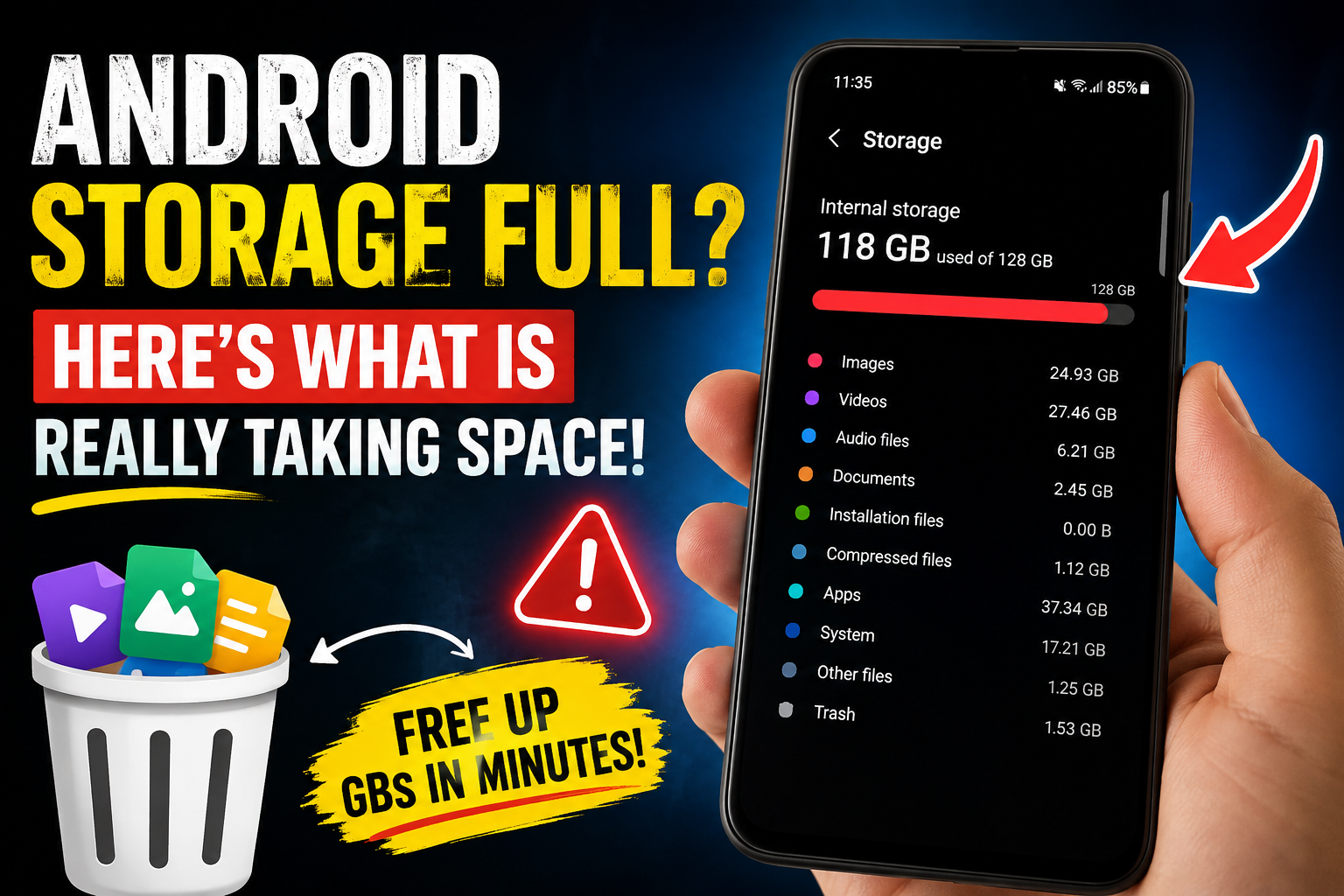
My phone started showing the “Storage almost full” message even though I couldn’t figure out what was taking up all the space. I checked my apps, gallery, and downloads, but nothing looked unusual. At that point, I was honestly confused — where had all those gigabytes gone
I opened the storage settings expecting to find an obvious culprit. Instead, there were apps, videos, cached files, downloads, “other” files, and a surprisingly large amount of space being used by things I didn’t immediately recognize.
That’s when I realized something many Android users eventually discover: when your Android storage is full, your biggest problem isn’t always the files you can see.
Sometimes it’s WhatsApp media. Sometimes it’s offline YouTube or Spotify downloads. Sometimes it’s an app cache that has quietly grown to several gigabytes. And occasionally, the real culprit is simply a folder you forgot existed.
In this guide, I’ll show you how to find what’s actually eating your Android storage and, more importantly, what you can safely remove.
Why Does Android Storage Get Full So Quickly?
Phone storage tends to disappear gradually. You install an app here, download a few videos there, receive hundreds of WhatsApp images, take some screenshots, and suddenly your 128GB phone has only 2GB left.
The tricky part is that Android doesn’t always make the cause obvious.
Storage can be consumed by:
- Photos and videos
- WhatsApp and Messenger media
- Downloaded files
- App cache
- Offline videos and music
- Large games
- Screen recordings and screenshots
- Duplicate files
- Unused apps
- Temporary system files
- Files sitting inside forgotten folders
And there is another issue: different Android phones organize storage slightly differently. A Samsung Galaxy may show storage categories differently from a Xiaomi, Redmi, Infinix, Tecno, Vivo, or Oppo phone.
So don’t worry if the exact menu on your phone looks different from the screenshots you’ve seen online.
First, Check What Is Actually Using Your Storage
Before deleting anything, stop for a minute. Randomly deleting files is one of the easiest ways to remove something you actually needed.
Start with your phone’s built-in storage manager.
On Most Android Phones
- Open Settings.
- Look for Storage or Device Care > Storage.
- Check the storage breakdown.
- Tap the category using the most space.
You may see categories such as Apps, Images, Videos, Audio, Documents, System, or Other.
Don’t just look at the percentage. Open the category and investigate it.
For example, if your phone says Apps are using 35GB, tap Apps. You might discover that one game is 8GB, WhatsApp is 6GB, and several other apps are holding another 10GB combined.
That is much more useful than simply knowing that “Apps” are taking up space.
Image suggestion: Android Storage Full settings screen showing storage categories.
ALT text: Android Storage Full showing apps, photos, videos and other storage categories
Android Storage Full? Check Your Videos First
If your phone’s storage is nearly full, videos are one of the first places I’d check.
A few minutes of high-resolution video can take much more space than people expect. If you regularly record 4K videos, screen recordings, or long clips, your gallery can quietly become the largest thing on your phone.
Open Google Photos or your phone’s Gallery app and sort through your videos.
Look especially for:
- Old screen recordings
- Long WhatsApp videos
- Duplicate clips
- Downloaded social media videos
- Videos you already uploaded somewhere else
- Failed or accidental recordings
One thing I personally found useful was checking screen recordings. I had several long recordings that I had completely forgotten about. They weren’t important anymore, but together they were taking several gigabytes.
Just don’t delete personal videos before confirming that you have another copy if they’re important.
WhatsApp Can Quietly Eat Gigabytes
This is probably one of the biggest storage surprises for Android users.
You might think your gallery is responsible, but WhatsApp can accumulate a huge amount of media in the background.
Open WhatsApp and go to:
Settings > Storage and data > Manage storage
The exact interface can change with WhatsApp updates, but the idea is the same: find large files and media that you don’t need anymore.
Pay special attention to videos.
A family group can send hundreds of images and videos over several months. Add multiple groups and suddenly your phone has a storage problem.
Before deleting anything, preview the files. WhatsApp media can include important documents, family pictures, receipts, or other files you may need later.
Also check your WhatsApp media settings and consider disabling automatic downloads for media you don’t actually need.
Check Downloads — The Forgotten Storage Folder
Here’s another simple one that gets overlooked.
Open the Files app on your phone and check the Downloads folder.
You may find:
- Old APK files
- PDF documents
- ZIP files
- Images
- Videos
- Documents downloaded for one-time use
- Multiple copies of the same file
APK files are especially easy to forget. You download an APK, install the app, and never delete the original file. Do that a few times and your Downloads folder starts becoming a small storage graveyard.
If you no longer need an APK or downloaded document, removing it can free space immediately.
Important: Don’t delete files simply because their names look unfamiliar. If you’re unsure what something is, leave it alone until you’ve checked it.
App Cache: Useful, But Sometimes Surprisingly Large
Cache sounds technical, but the basic idea is simple.
Apps save temporary files so they don’t have to download or recreate everything repeatedly. This can make apps feel faster.
But sometimes the cache becomes surprisingly large.
To check an app:
- Open Settings.
- Go to Apps.
- Select an app.
- Tap Storage or Storage & cache.
- Look at the cache size.
If an app has several hundred megabytes of cache, clearing it may be reasonable.
However, don’t make a habit of clearing every app’s cache every day. Cache exists for a reason, and repeatedly clearing it can mean the app simply has to rebuild those temporary files again.
Also be careful around Clear storage or Clear data. That’s different from clearing cache and can reset the app or remove locally stored information.
Offline Downloads Are Easy to Forget
This one caught me more than once.
Streaming apps can store content locally for offline use. That’s convenient until you forget about it.
Check apps such as:
- YouTube
- Spotify
- Netflix
- Google Maps
- Podcast apps
- Other video or music apps
If you downloaded an entire playlist or several movies for a trip months ago, those files may still be occupying your storage.
Open the relevant app and look for its Downloads or Offline section.
You don’t necessarily need to uninstall the app. Removing old offline content can be enough.
Large Games Can Be the Real Culprit
If you play modern Android games, check your installed apps before blaming your photos.
Some games start with a relatively small installation but download additional resources after you open them. High-resolution textures, maps, voice files, updates, and other game data can push the total size much higher.
Go to Settings > Apps and sort apps by size if your phone supports that option.
You’ll quickly see which apps are consuming the most storage.
If you haven’t played a huge game for months, uninstalling it may free considerably more space than deleting hundreds of small files.
What Is “Other” Storage on Android?
This is where things get confusing.
Some Android phones show a category called Other, while others may use names such as miscellaneous files or similar categories.
It can contain various types of data, including app-related files, temporary data, documents, downloads, and files that don’t fit neatly into another category.
The exact contents depend on the phone manufacturer and Android version.
So if you see 10GB or 20GB under “Other,” don’t immediately assume that it is junk.
Instead, investigate your files and large apps first. Your phone’s built-in storage tools are usually safer than downloading a random “storage cleaner” app and giving it access to everything.
Be Careful With Storage Cleaner Apps
I’ve tried plenty of Android utilities over the years, and one lesson became pretty clear: you don’t need five different cleaner apps running on your phone.
Modern Android phones already include storage-management tools. Google also provides Files by Google, which can help identify large files, duplicates, unused apps, and other items that may be worth reviewing.
Be skeptical of apps promising dramatic storage increases with one tap. Some cleaner apps are useful, but you should understand exactly what they’re deleting before pressing a big “Clean” button.
Google Photos Can Help, But Check Before Deleting
If photos and videos are consuming most of your storage, cloud backup can be useful.
If your photos are safely backed up, Google Photos may offer options to remove backed-up copies from the device.
But don’t blindly delete everything.
First open a few important photos and videos and make sure they are actually backed up. If something is important, I prefer checking it manually rather than trusting a button just because it says “Free up space.”
This is one of those situations where five extra minutes of checking can save you a lot of regret.
Find Duplicate Photos and Files
Duplicates are another quiet storage thief.
You may have the same image saved from WhatsApp, downloaded from a browser, received through Messenger, and then saved again manually.
The result can be four copies of essentially the same file.
Look for duplicate or similar files using your phone’s built-in file manager or a trusted storage-management tool.
Don’t delete similar-looking photos automatically if they’re personal pictures. Sometimes two photos look almost identical but one has better quality or contains something important in the background.
Clear Your Browser Downloads and Large Files
Chrome and other browsers can also leave downloaded files behind.
If you frequently download PDFs, images, videos, documents, or APKs from websites, check your Downloads folder regularly.
Browser cache itself usually isn’t the biggest storage problem, but downloaded files can be.
Instead of clearing everything, remove files you recognize and no longer need.
Check Screen Recordings and Screenshots
These deserve their own section because they’re easy to overlook.
A screenshot might be only a few megabytes, but hundreds of them add up. Screen recordings are even more noticeable because a long recording can consume a lot of storage.
Search your Gallery for albums named:
- Screen recordings
- Screenshots
- Downloads
- Videos
- WhatsApp Video
- WhatsApp Images
You’ll probably recognize something you forgot about.
What You Should NOT Delete Just to Free Space
When storage is full, it’s tempting to delete anything that looks unfamiliar.
I’d avoid that approach.
Don’t manually delete random files from system folders just because they’re large. You could cause apps to malfunction or lose data.
Also avoid deleting:
- Files you don’t understand
- Important documents
- Unbacked-up photos
- Authentication or backup files
- App data you may need later
- System files
If you’re unsure, leave it alone and investigate first.
A Simple 10-Minute Android Storage Cleanup
If you don’t want to spend an entire afternoon cleaning your phone, here’s the order I’d personally use.
- Open Storage settings and identify the biggest category.
- Check videos and delete unwanted large recordings.
- Check WhatsApp storage for large media.
- Open Downloads and remove old files.
- Check large apps and games.
- Remove unused apps you haven’t touched in months.
- Check offline downloads in streaming apps.
- Review screenshots and screen recordings.
- Clear cache only where appropriate.
- Restart the phone and check storage again.
You don’t need to delete everything. The goal is to remove the things you genuinely don’t need.
How Much Free Storage Should You Keep?
There’s no single magic number that works for every phone, but I wouldn’t wait until your storage is completely full.
If your phone constantly has only a few hundred megabytes remaining, everyday tasks can become frustrating. Apps may struggle with updates, the camera may complain when saving videos, and you may repeatedly see storage warnings.
Personally, I prefer leaving several gigabytes free whenever possible.
For a phone with 128GB storage, keeping around 10GB or more available is a comfortable target for many users, although your actual needs depend on how you use the phone.
If you record lots of videos or install large games, you’ll obviously need more breathing room.
Common Android Storage Mistakes to Avoid
Deleting Photos Before Checking Backup
This is probably the worst one. Always verify that important photos and videos are backed up somewhere safe before deleting local copies.
Clearing App Data Instead of Cache
Cache and app data aren’t the same thing. Be careful when selecting the option.
Installing Multiple Cleaner Apps
One trustworthy storage tool is enough. Installing several cleaners can create more clutter rather than solving the original problem.
Ignoring WhatsApp
If you use WhatsApp heavily, don’t skip its storage manager. It can be one of the largest sources of unnecessary media.
Deleting Unknown System Files
If you don’t know what a file does, don’t delete it simply because it has a strange name.
What If Storage Is Still Full After Cleaning?
If you’ve removed large videos, checked WhatsApp, cleaned Downloads, deleted unused apps, and you’re still running out of space, look deeper.
Check the largest apps individually. Look for offline content. Review your file manager’s categories. Also check whether a particular app is continuously generating large temporary files.
If the phone is extremely old or has very limited internal storage, you may eventually reach a practical limit. At that point, moving photos and videos to a computer, external storage, or a reliable cloud backup service can make more sense than repeatedly deleting small files.
And if you’re constantly fighting for every last gigabyte, your next phone might simply need more storage. Sometimes that’s the honest answer.
FAQ: Android Storage Full
Why is my Android storage full when I have not installed many apps?
Photos, videos, WhatsApp media, downloads, offline content, cached files, and app data can consume much more storage than the number of installed apps suggests. Check your storage breakdown to find the largest category.
How do I find what is taking up the most space on Android?
Open Settings > Storage or your phone’s equivalent storage manager. Then open the largest categories and check individual apps, videos, downloads, and other files.
Is it safe to clear Android app cache?
Generally, clearing cache is safer than clearing app data because cache consists mainly of temporary files. However, you don’t need to clear cache constantly, and menu names can vary between Android phones.
Why is WhatsApp using so much storage?
WhatsApp can automatically save photos, videos, documents, GIFs, and other media from chats and groups. Its storage manager can help you identify and remove large or unnecessary files.
Can I delete files from the Android folder?
Don’t randomly delete files from Android system or app folders. If you don’t know what a file does, leave it alone and use your phone’s built-in storage management options instead.
Does deleting apps free storage immediately?
Usually, uninstalling an app removes its app files and can free significant space. However, some user-created files may remain elsewhere, so checking the Downloads and media folders can still be worthwhile.
How much free storage should an Android phone have?
It depends on your phone and usage. Keeping several gigabytes free is a sensible habit, while users who record lots of video or install large games should keep considerably more available.
Final Thoughts
When Android says your storage is full, don’t panic and don’t start deleting random files.
Take a few minutes to find the real culprit.
In many cases, you’ll discover that the problem isn’t some mysterious Android issue at all. It’s a forgotten folder full of videos, years of WhatsApp media, offline downloads, giant games, screenshots, or files you downloaded once and never looked at again.
I’ve found that the best storage cleanup is usually the boring one: check the biggest categories, remove what you actually recognize, and leave important files alone.
Once you get into the habit of checking storage every few months, that dreaded “Storage almost full” notification becomes much easier to avoid.