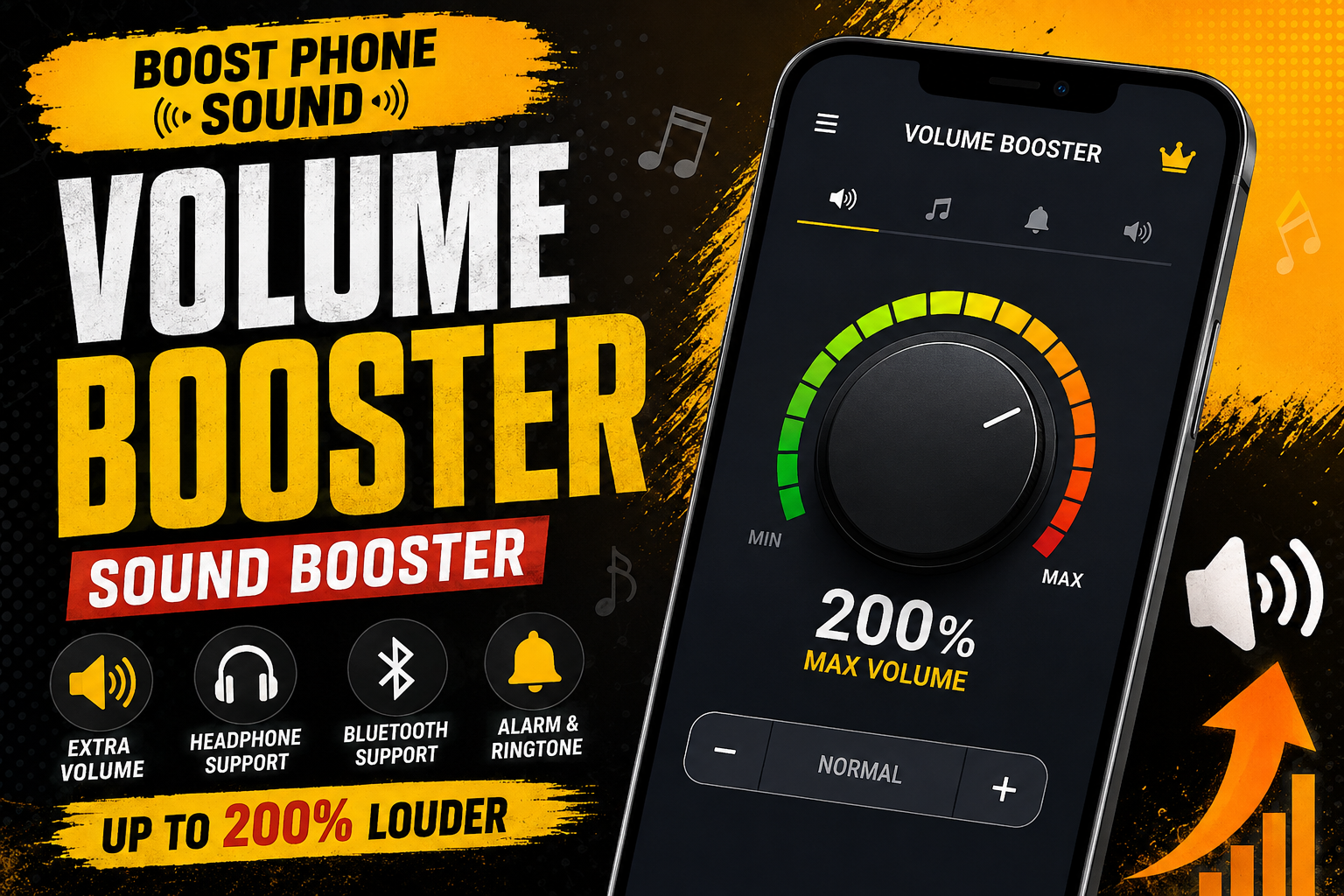
This is where a volume booster app can become useful. Volume Booster – Sound Booster, also known as EZ Booster, is an Android application designed to increase the audio level beyond the normal volume controls available on many phones. The app is published by 360 Tool and is currently listed in the Music & Audio category on Google Play.
According to its Google Play listing, the app has more than 50 million downloads and a rating of around 4.8 stars. The listing also says that it can boost sound up to 200 percent and can work with media, alarms, ringtones, headphones, external speakers and Bluetooth devices.
But simply saying that an app can make your phone louder does not tell you whether it is actually useful. In this guide, we will look at what Volume Booster – Sound Booster does, how it works, how to use it, what features are included, what you should know before increasing the volume, and whether it is worth trying on an Android phone.
What Is Volume Booster – Sound Booster?
Volume Booster – Sound Booster is an Android sound amplification application made for people who want more control over their phone’s audio output. Instead of relying only on the standard Android volume slider, the app provides an additional way to increase and manage sound.
The idea behind the app is quite simple. Your phone already has a maximum volume level controlled by Android. A booster app processes or amplifies the audio so that the output can feel louder than the normal system setting. The exact result can vary depending on the phone, speaker hardware, headphones and the type of audio being played.
The app is aimed at everyday situations rather than professional audio production. You can use it while watching videos, listening to music, playing games, listening to audiobooks or using headphones.
The Google Play listing also says that the app does not require root access. That is important for ordinary Android users because rooting a phone can introduce unnecessary risks and complications. With this application, users can try the booster without modifying the operating system.
Why Do People Need a Volume Booster?
Not every phone has the same speaker performance. Two Android phones can have the same maximum volume percentage but produce very different real-world sound levels.
For example, you may have an older phone with a small speaker. At home, its volume may be acceptable. On a busy road, at work, during a gathering, or while doing something noisy around the house, the same speaker can suddenly feel too quiet.
Headphones can have a similar problem. Some earphones simply do not sound as loud as others. Bluetooth speakers can also behave differently depending on their hardware and connection.
This is one reason applications such as Volume Booster – Sound Booster remain popular. They offer a quick software-based option before a user decides to replace their headphones, speaker or phone.
Main Features of Volume Booster – Sound Booster
The application includes several features designed around simple volume control. Some of the most notable ones are explained below.
1. Extra Volume Boost
The main purpose of the application is, of course, increasing audio volume. The Google Play description says the app can boost volume up to 200 percent beyond the normal device level.
That does not mean every Android phone will physically produce exactly twice the loudness. Sound output depends on the phone’s hardware and the audio being played. The percentage shown inside an app should therefore be treated as a software amplification level rather than a guaranteed measurement of real-world loudness.
2. Music and Video Volume
If your main problem is quiet music or videos, the app can be useful for media playback. It is designed to work with common audio sources, including music and video.
This can be handy when watching a video in a room where the built-in speaker does not seem loud enough. Instead of repeatedly pressing the volume-up button, you can use the booster control to increase the output.
3. Headphone Support
Another interesting use is headphones. Some users find that their wired or wireless headphones are not loud enough even when the Android volume slider is already near maximum.
Volume Booster – Sound Booster is designed to work with headphones as well. However, the final result will depend heavily on the headphones themselves. A software booster cannot turn a low-powered pair of earphones into a professional studio headset.
4. Bluetooth Audio
The application also lists support for Bluetooth audio. This can be useful when connecting your phone to a Bluetooth speaker, wireless earbuds or another compatible audio device.
Bluetooth audio can involve several different volume controls, so the experience may differ from one device to another. If the booster does not seem to change the output significantly, checking both the phone volume and the connected device’s own volume is worth doing.
5. Alarm and Ringtone Boost
Volume boosters are not only about music. The Google Play listing says the app can also boost system sounds such as alarms and ringtones.
This can be useful for someone who frequently misses calls or notifications because their phone speaker is not loud enough. Still, users should test the result carefully. A ringtone that is comfortable at normal volume can become surprisingly loud after amplification.
6. Multiple Sound Modes
The app includes eight sound modes that can be selected with a single tap. The purpose is to make switching between different volume levels easier rather than forcing the user to manually adjust the booster every time.
This kind of feature can be particularly convenient if you regularly change between quiet and louder environments.
7. Background and Lock Screen Support
According to the Play Store description, the booster can continue working in the background and can be controlled from the lock screen.
That means you do not necessarily need to keep the main application screen open while listening to audio. This is a small feature, but it can make daily use much more comfortable.
8. Notification Controls
The application also provides quick controls through the notification area. Instead of opening the app every time you want to turn the booster on or off, you can use the available notification controls when supported by your device.
9. Home Screen Widget
A widget is another shortcut offered by the application. Widgets can be useful if you frequently change your audio level throughout the day.
For example, you might use a lower volume while sitting at home and a stronger boost when you are outdoors. Having a quick control on the home screen can save a few taps.
10. Built-In Music Controls
Volume Booster – Sound Booster also includes basic music player controls. The Play Store listing mentions options such as play, pause, previous and next track controls, along with information such as the song title and artist.
So the application is not limited to one volume slider. It attempts to provide a small set of controls around the overall listening experience.
How to Use Volume Booster – Sound Booster
Using a volume booster application should not be complicated. The basic process is straightforward, although the exact buttons can change with future updates or different Android versions.
Step 1: Install the App
First, install Volume Booster – Sound Booster from Google Play. Using the official Play Store listing is preferable because it gives you access to the developer’s current version and Google’s app distribution system.
The application is listed as free to use, although the Play Store currently shows advertisements and in-app purchases.
Step 2: Open the Application
After installation, open the app and allow it to complete its initial setup. Depending on your Android version and the current app version, you may see different screens or permissions.
Step 3: Start With a Moderate Level
This is probably the most important step. Do not immediately push the booster to its maximum level.
Start with a small increase and play a song or video. Listen for a few seconds and check whether the sound remains clear.
Step 4: Increase Gradually
If the audio is still too quiet, slowly increase the booster level. You may find that a moderate boost is enough for your phone.
There is usually no advantage in using the highest possible setting when a lower setting already gives you the volume you need.
Step 5: Test Different Audio Sources
Try the booster with a few different types of audio. Play music, a YouTube video, a game or a podcast. Different recordings can respond differently to amplification.
One song might sound perfectly fine at a higher level, while another could become harsh or distorted.
Step 6: Adjust It for Headphones or Bluetooth
If you use headphones or a Bluetooth speaker, connect the device and then test the booster again. Make sure the volume on both devices is at a sensible level.
Does Volume Booster Really Make Your Phone Louder?
Yes, a volume booster can make audio sound louder, but there is an important difference between software amplification and better speaker hardware.
Your phone’s physical speaker has limits. Software cannot magically create a larger speaker or increase the physical power of the hardware indefinitely. What a booster can do is increase the level of the audio signal within the limits of the device.
Because of this, the results can be impressive on one phone and much less noticeable on another.
If your phone already has a powerful speaker, you may not need much extra amplification. On a device with quieter speakers, even a moderate increase can be noticeable.
What Happens When You Boost Audio Too Much?
This is where users need to be careful. Louder is not always better.
When audio is pushed beyond a comfortable level, it can start to sound distorted. Vocals may become harsh, bass may lose clarity, and music can become unpleasant to listen to.
The Google Play listing itself warns that excessive volume can cause damage to your hearing and potentially your device. It recommends increasing the volume gradually and giving your ears time to rest.
For this reason, the safest approach is simple: use only as much amplification as you actually need.
Is It Safe for Your Phone?
There is no simple answer that applies to every Android phone. Different manufacturers use different speakers, amplifiers and audio systems.
Using a software volume booster at a moderate level is generally a more sensible approach than constantly forcing the output to its maximum possible level. If you notice crackling, buzzing, overheating, unusual speaker behavior or severe distortion, turn the booster down or stop using it.
Remember that your phone speaker is a physical component. If an audio signal is pushed aggressively, the speaker may struggle to reproduce it cleanly.
Is It Safe for Your Ears?
This deserves even more attention than the phone itself.
Your ears do not care whether the sound became louder through Android’s normal volume slider or through a booster application. If the final sound reaching your ears is too loud, it can be uncomfortable and potentially harmful.
This is particularly important when using headphones because the sound is being delivered very close to your ears.
A good habit is to keep the volume at the lowest level that allows you to hear comfortably. If you are in a noisy environment, consider using headphones that provide better isolation instead of simply increasing the volume again and again.
Volume Booster for Music
Music is probably one of the most common reasons people install a booster app.
If your phone’s speaker sounds weak while playing songs, the additional amplification can make the overall experience louder. It can also be useful when listening through headphones that feel slightly quieter than expected.
However, music quality matters. If a track is already heavily compressed, boosting it further will not necessarily make it sound better. It can simply make the existing imperfections more noticeable.
For the best result, increase the volume gradually and stop once the sound becomes comfortably loud.
Volume Booster for YouTube and Videos
Watching videos on a phone can be frustrating when dialogue is difficult to hear. This is especially common when the video was recorded with low audio levels.
A booster may help make voices and other sounds more noticeable. It can be particularly convenient when watching videos without headphones.
Still, if a particular video has extremely poor audio, a booster cannot completely repair the original recording. It increases the available audio level rather than magically recreating missing sound information.
Volume Booster for Gaming
Mobile games often rely heavily on sound effects. Footsteps, alerts, engine sounds, character voices and background music can all be important.
If the game’s normal volume feels too low, a booster may provide an extra level of amplification. This can make certain sound effects easier to hear.
But gaming is also an area where excessive volume can become annoying very quickly. If you use headphones while gaming, keep the volume comfortable rather than trying to make every sound as loud as possible.
Volume Booster for Bluetooth Speakers
Bluetooth speakers already have their own amplifiers and volume controls. Still, some users may find that the phone-to-speaker output feels lower than expected.
Volume Booster – Sound Booster lists Bluetooth support among its features.
If you use it with a Bluetooth speaker, check the volume on the phone and the speaker itself. Some Bluetooth devices maintain their own independent volume level.
What About the 200% Volume Claim?
The app’s Google Play description says that it can increase volume up to 200 percent.
It is important to understand what that number does and does not mean.
It should not be interpreted as a scientific measurement saying that every phone will become exactly twice as loud. Loudness is affected by speaker hardware, audio source, frequency response, Android’s audio system and other factors.
Think of the 200 percent figure as a software boost setting rather than a promise of a universal physical loudness increase.
Does It Need Root Access?
No. The Google Play listing specifically states that root is not required.
This makes the application easier for normal Android users because there is no need to unlock the bootloader or modify system files simply to try a volume booster.
If you have never rooted an Android phone before, there is little reason to consider rooting just for this purpose.
Ads and In-App Purchases
The Google Play listing currently marks the application as containing ads and in-app purchases.
This is worth knowing before installing it. The free version can be useful for testing whether the booster actually helps your phone, but users who dislike advertisements or want additional features may encounter optional premium offerings.
Recent Play Store reviews also show mixed opinions about the advertising and setup experience. Some users say that recent updates improved the application, while others complain about intrusive ads or setup prompts. These are individual user experiences rather than a universal result, so your experience may be different.
Privacy and Data Safety
Privacy is something I recommend checking before installing any utility application, especially one that runs in the background.
According to the current Google Play data safety section, the developer says that the app does not share data with third parties. The listing also says the app may collect app activity, app information and performance information, and device or other IDs. It states that data is encrypted in transit and that users can request deletion of their data.
These are developer-provided disclosures and can change over time, so it is always a good idea to check the current Play Store privacy section before installation or after a major update.
Current Version and Android Compatibility
The current Google Play listing shows that Volume Booster – Sound Booster was updated on July 22, 2026. The app is listed in the Music & Audio category and has an Everyone content rating.
Third-party app tracking information identifies the current version as 2.8.0.57, although users should rely on Google Play for the version available to their particular device and region.
Android compatibility can also vary because phone manufacturers customize the audio system. An app that works very well on one Samsung, Xiaomi, Tecno, Infinix, Vivo or Oppo phone may behave differently on another model.
Advantages of Volume Booster – Sound Booster
- Easy way to increase audio beyond normal volume controls.
- No root access is required.
- Supports music and video playback.
- Can be used with headphones.
- Supports Bluetooth audio devices.
- Can boost alarms and ringtones.
- Includes quick controls and a widget.
- Offers multiple sound modes.
- Includes basic music playback controls.
- Available as a free application with optional purchases.
Possible Disadvantages
- Maximum amplification may introduce distortion on some phones.
- Very high volume can be uncomfortable or harmful to hearing.
- Results vary between different Android devices.
- Some users may find advertisements intrusive.
- A software booster cannot overcome the physical limits of a phone speaker.
- Some audio recordings may sound harsh after excessive amplification.
How to Get Better Sound Without Using Maximum Boost
You do not always need to push a volume booster to its highest level. In fact, there are several simple things you can try first.
Clean the Speaker
Dust and dirt can collect around a phone’s speaker openings. Even a small amount of blockage can make the sound seem weaker. Carefully clean the speaker area using an appropriate dry method and avoid pushing objects deep into the openings.
Remove Thick Cases
Some phone cases partially cover speaker openings. If your case is poorly designed or damaged, temporarily remove it and compare the sound.
Check Bluetooth Connections
If your phone is connected to a Bluetooth device that you are not currently using, the audio may be going somewhere else. Check your Bluetooth settings before assuming the phone speaker has a problem.